

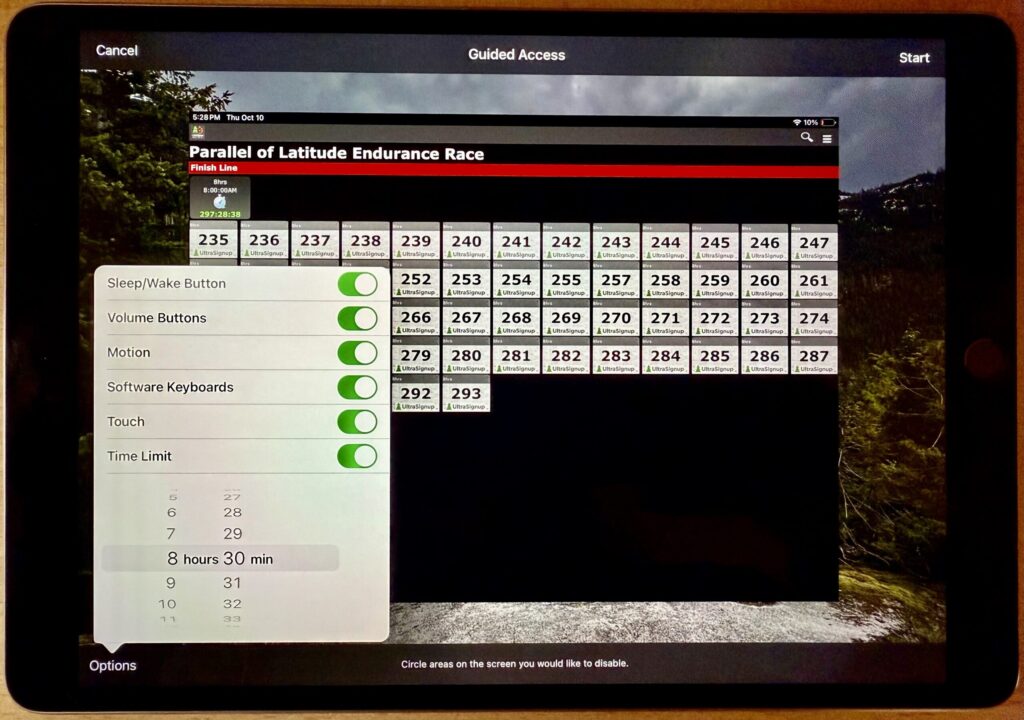
iPhones and iPads are highly personal devices, but you might want to let someone else use a particular app on yours without letting them poke through Messages, Mail, and Photos. For example, a child could play a game, a volunteer could check in attendees, or a friend could take photos. To allow this, Apple created Guided Access, which you turn on in Settings > Accessibility—give it an easily remembered passcode and decide if you want to let the display auto-lock. Then, to turn on Guided Access, open the app you want to share and triple-click the side or top button. Options let you control buttons, the accelerometer, software keyboards, touch input, and a time limit. To end a Guided Access session, triple-click the side or top button, enter the Guided Access passcode, and tap End.
(Featured image by iStock.com/Userba011d64_201)

A week might be too short if IT approval is still pending. I'd treat "keeping your old iPhone for a…
Awesome tech breakdown on "When Should You Upgrade to macOS 27 Golden Gate, iOS 27, iPadOS 27, watchOS 27, tvOS…
I’ve used Chrome’s built-in screenshot tool, but opening DevTools every time gets a bit tedious. I recommend FullPage Capture, it’s…
This is such an important reminder. I've been in meetings where an AI notetaker silently joined and recorded everything, and…
Awesome tech breakdown on "When Should You Upgrade to macOS 27 Golden Gate, iOS 27, iPadOS 27, watchOS 27, tvOS…