
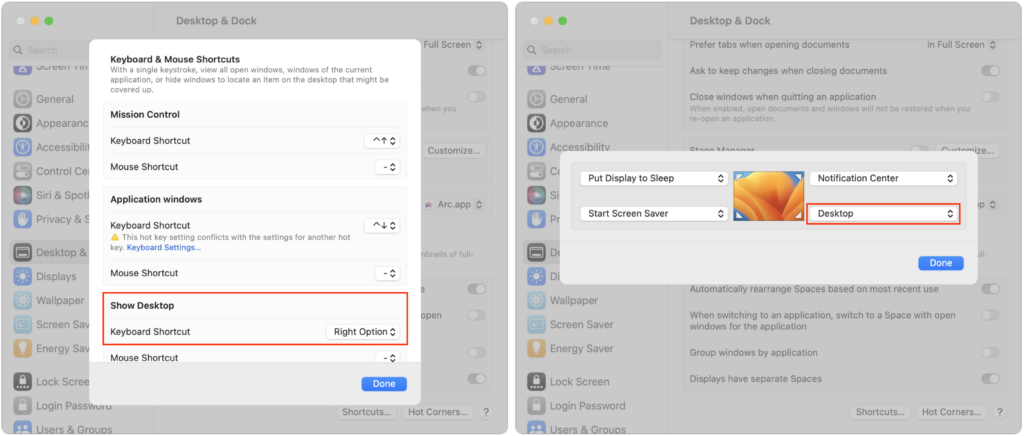
The Mac’s Desktop is a remarkably useful place. It’s a good spot for in-progress documents, screenshots, images dragged out of Web pages, and more. However, if you’re like many of us, app windows tend to obscure the Desktop, making it harder to use. There are two quick ways you can temporarily hide windows, making it easy to access icons on the Desktop. In macOS 13 Ventura, in System Settings > Desktop & Dock, click the Shortcuts button at the bottom and assign a keyboard shortcut to Show Desktop (we like the Right Option key). Or click Hot Corners and choose Desktop for one of the corners. (In macOS 12 Monterey and earlier, look in System Preferences > Mission Control.) Then, press that keyboard shortcut or put your pointer in that corner to move your windows aside temporarily. When you’re done, press the key or move the pointer there again to put the windows back.
(Featured image based on an original by iStock.com/AmnajKhetsamtip)

Useful walkthrough. The concrete examples made the workflow much easier to follow.
Saved my day
The note that Rosetta isn’t automatically restored after the macOS 27 Golden Gate upgrade is the part that would catch…
Useful note that Live Text needs an A12 Bionic or later on iPhone and iPad but works on any Mac…
Just found text to game by Tuvimo and it actually works for quick browser fun. Makes me want to revisit…