
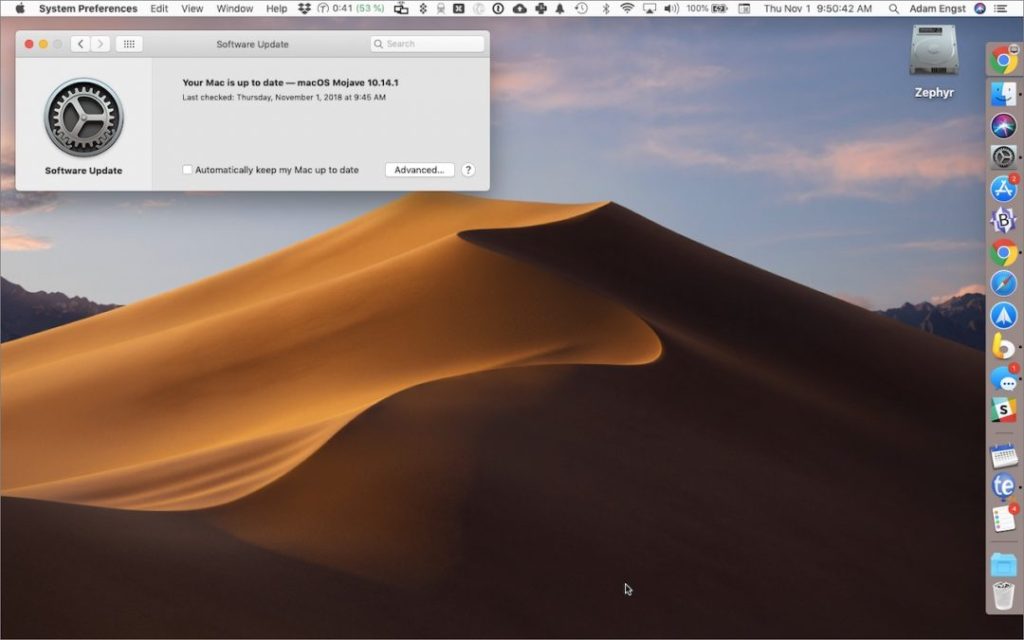
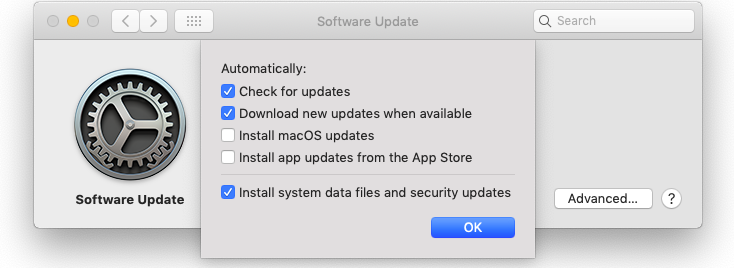
For years, you’ve used the App Store app to install operating system and app updates on your Mac. That’s still true for apps, but with macOS 10.14 Mojave, Apple moved operating system updates to the new Software Update preference pane, which replaces the old App Store preference pane. Open System Preferences > Software Update to check your version of macOS and access available updates—there will be an Update Now button to click. You should also visit this pane to tell your Mac how to best handle system and app updates: Don’t select “Automatically keep my Mac up to date” because updates might come at an inconvenient time for you. Instead, click Advanced and then select “Check for updates” and “Install system data files and security updates”—they’re important. Unless you’re low on drive space, selecting “Download new updates when available” is fine, since that will make updating faster. However, keep “Install macOS updates” and “Install app updates from the App Store” off so you can choose when to update.
Mojave has a lot of incredible new features. Learn about how you can file email messages faster in this post.

Picking one style guide and living with it is the advice I give every time this question comes up, and…
Golden Gate as the macOS 27 codename is a nice callback. For mixed households I'd love a recommendation on the…
Check with your phone service provider.
Do you take orders for the new 18 or is that just at the Apple stores? Thanks
Making Wi-Fi joining as easy as scanning a QR code is exactly the kind of MacWorks tip guests actually use.