

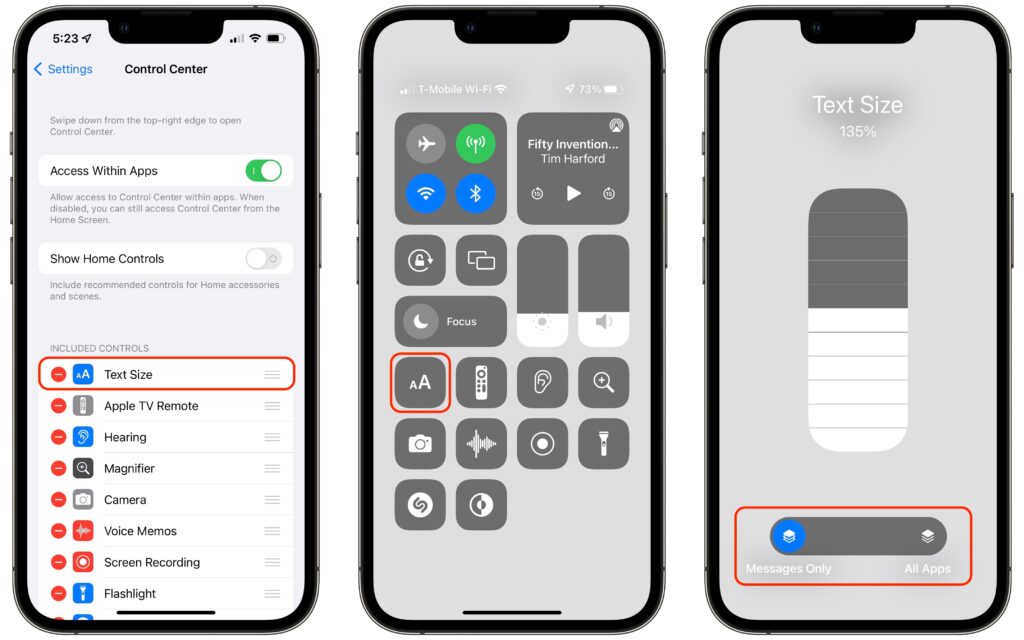
In previous versions of iOS, you could change the systemwide text size to make all apps—at least those that support Dynamic Type—display text at larger or smaller sizes. (Most people who use this feature want the text larger so it’s easier to read with aging eyes.) In iOS 15 and iPadOS 15, however, Apple lets you adjust the text size on a per-app basis, so you can increase it only for those apps where it really makes a difference for you. First, make sure Text Size is showing in Control Center by going to Settings > Control Center, and if it’s not in Included Controls, tap the green + button for it under More Controls. Then, while in an app where you want bigger text, invoke Control Center, tap the Text Size button, move the vertical slider to the desired setting, and then tap the App Only button so the setting affects only that app, not all apps.
(Featured image by iStock.com/SandraMatic)

A week might be too short if IT approval is still pending. I'd treat "keeping your old iPhone for a…
Awesome tech breakdown on "When Should You Upgrade to macOS 27 Golden Gate, iOS 27, iPadOS 27, watchOS 27, tvOS…
I’ve used Chrome’s built-in screenshot tool, but opening DevTools every time gets a bit tedious. I recommend FullPage Capture, it’s…
This is such an important reminder. I've been in meetings where an AI notetaker silently joined and recorded everything, and…
Awesome tech breakdown on "When Should You Upgrade to macOS 27 Golden Gate, iOS 27, iPadOS 27, watchOS 27, tvOS…