
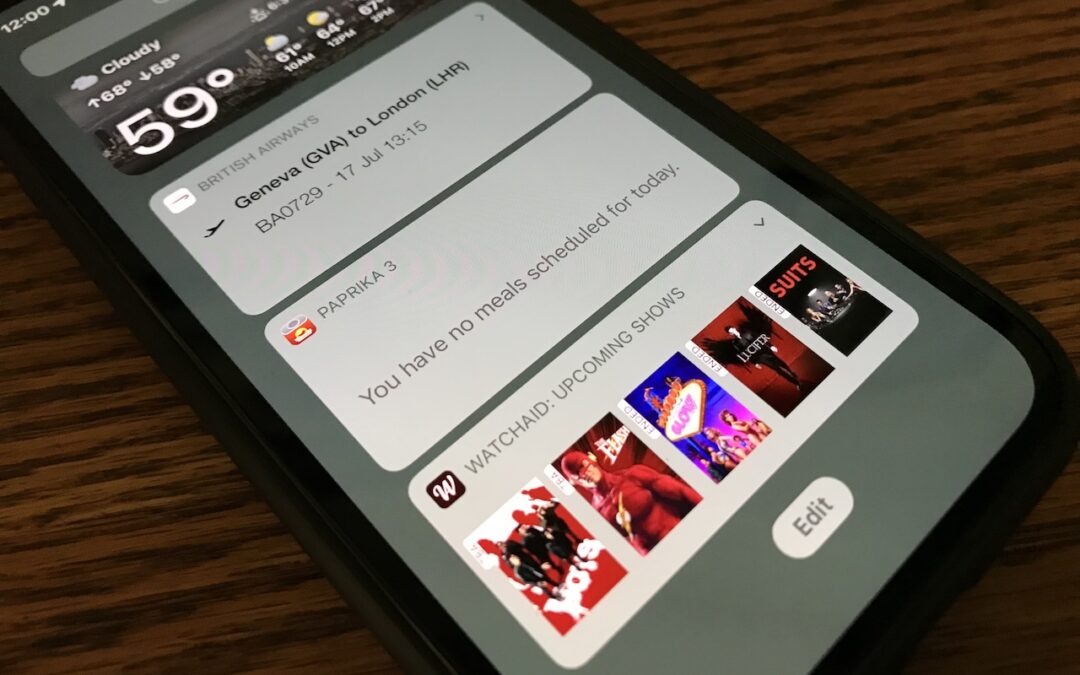
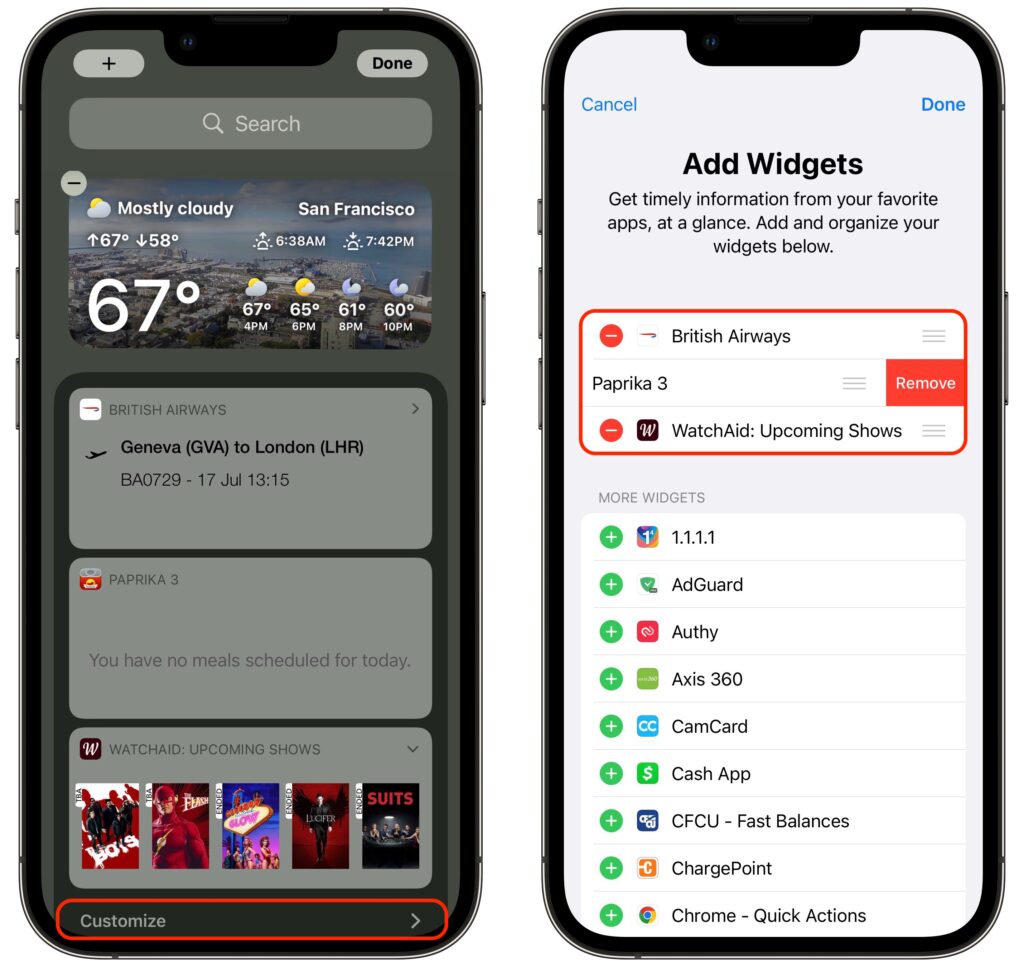
In iOS 14, Apple overhauled widgets, allowing you to add them to your Home screen in addition to the Today View accessible by swiping right on the Home screen. App developers responded with a slew of new widgets, but old-style widgets that are limited to Today View remain available. If you no longer want these older widgets cluttering the bottom of your Today View, here’s how to remove them. Swipe right on the Home screen to enter Today View. At the bottom of Today View, tap the Edit button, and at the bottom of the collection of old-style widgets (new-style widgets wiggle), tap Customize. In the Add Widgets screen, tap the red ⊖ button next to each widget you want to delete and confirm by tapping Remove.
(Featured image by Adam Engst)

A week might be too short if IT approval is still pending. I'd treat "keeping your old iPhone for a…
Awesome tech breakdown on "When Should You Upgrade to macOS 27 Golden Gate, iOS 27, iPadOS 27, watchOS 27, tvOS…
I’ve used Chrome’s built-in screenshot tool, but opening DevTools every time gets a bit tedious. I recommend FullPage Capture, it’s…
This is such an important reminder. I've been in meetings where an AI notetaker silently joined and recorded everything, and…
Awesome tech breakdown on "When Should You Upgrade to macOS 27 Golden Gate, iOS 27, iPadOS 27, watchOS 27, tvOS…