
 Image by GEORGE DESIPRIS from Pexels
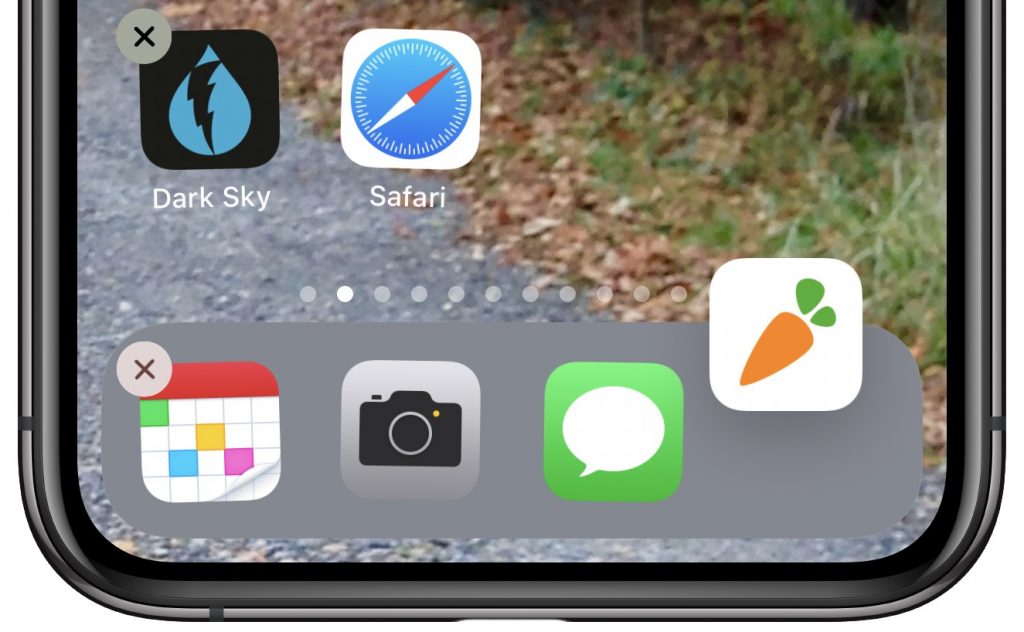
If you have lots of apps on your iPhone or iPad, rearranging their icons on your Home screens by dragging from page to page is tedious. Although the new App Library promised for iOS 14 later this year will help you find apps, rearranging them will still be a manual process. To make organizing your Home screens easier, try using the Dock as a temporary shelf. Touch and hold on any icon and then tap Edit Home Screen (or just start dragging) to start all the icons wiggling. Then, navigate to your rightmost Home screen and drag one icon off the Dock temporarily. Now, for other icons you want to move between screens, drag the icon to the Dock, swipe quickly to view the desired screen, and then drag the icon off the Dock into the position you want. When you’re done, put your original Dock icon back and swipe up (on Face ID devices) or press the Home button (on Touch ID devices) to stop the icons from wiggling.

A week might be too short if IT approval is still pending. I'd treat "keeping your old iPhone for a…
Awesome tech breakdown on "When Should You Upgrade to macOS 27 Golden Gate, iOS 27, iPadOS 27, watchOS 27, tvOS…
I’ve used Chrome’s built-in screenshot tool, but opening DevTools every time gets a bit tedious. I recommend FullPage Capture, it’s…
This is such an important reminder. I've been in meetings where an AI notetaker silently joined and recorded everything, and…
Awesome tech breakdown on "When Should You Upgrade to macOS 27 Golden Gate, iOS 27, iPadOS 27, watchOS 27, tvOS…