

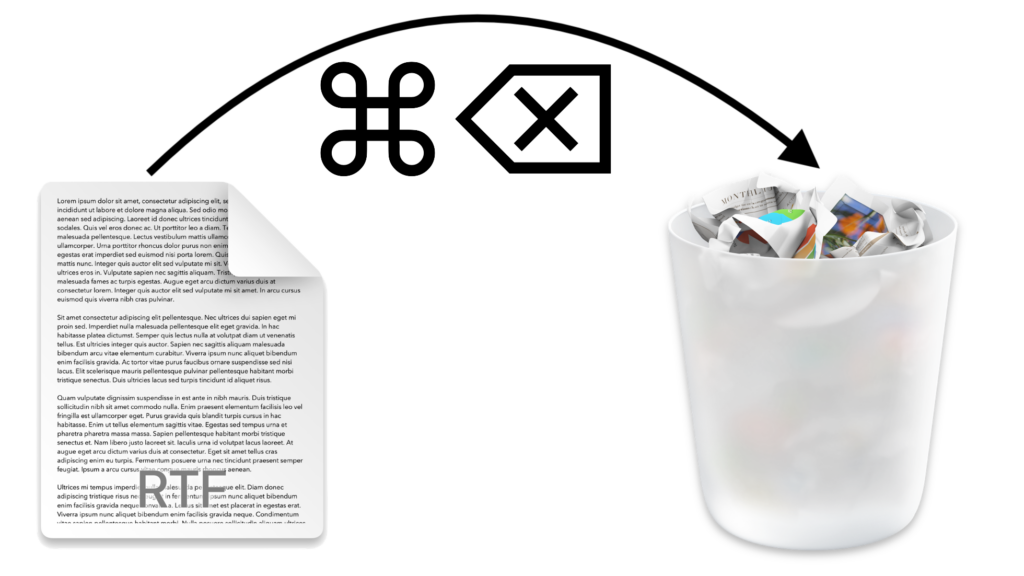
You know that you can drag files or folders to the Trash icon in the Dock for later deletion. And you probably know that you can select multiple items on the Desktop or in a Finder window by Command-clicking each one in turn (Shift-click to select a sequential range of items in a list view), after which you can drag them all to the Trash. But there’s no reason to expend effort mousing if you prefer to keep your hands on the keyboard—just press Command-Delete to send one or more selected files and folders directly to the Trash. Finally, if you need your disk space back right away, press Command-Shift-Delete to empty the Trash. However, we recommend not emptying the Trash frequently—that way, you have a chance to recover something you discover that you needed after trashing it.
(Featured image by iStock.com/FabrikaCr)

Picking one style guide and living with it is the advice I give every time this question comes up, and…
Golden Gate as the macOS 27 codename is a nice callback. For mixed households I'd love a recommendation on the…
Check with your phone service provider.
Do you take orders for the new 18 or is that just at the Apple stores? Thanks
Making Wi-Fi joining as easy as scanning a QR code is exactly the kind of MacWorks tip guests actually use.