
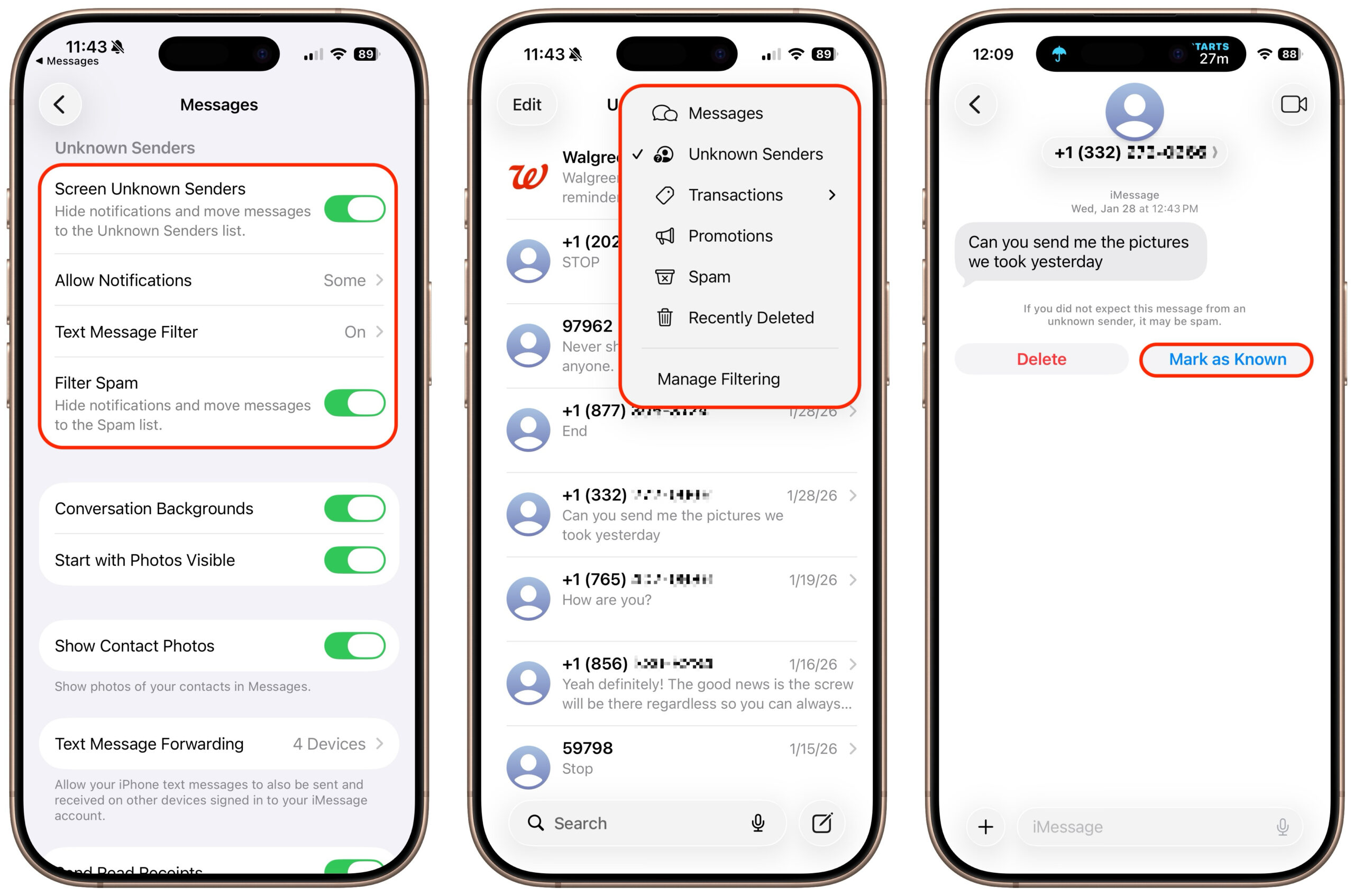
In iOS, iPadOS, and macOS 26, Apple added an option in the Messages app to filter messages from unknown people and those marked as spam by the carrier. To enable filtering, open Messages, tap the Filter  button in the upper-right corner, tap Manage Filtering, and turn on Screen Unknown Senders and Filter Spam. Once those are enabled, the Filter menu gains two new options: Unknown Senders and Spam. If a text from an unknown person comes in, the main app icon will get a red badge, but you won’t see the new message in the usual list. Instead, use the Filter menu—which also gets a blue badge—to switch to Unknown Senders or Spam and look in those lists. The Phone app works similarly—enable call filtering in Settings > Apps > Phone under Call Filtering, and unknown callers will appear in separate lists accessible via the Filter button in the Phone app’s Recents or Calls views. To move a conversation out of Unknown Senders, tap Mark as Known.
If you need a bit of help, stop by either Austin MacWorks store, and we’ll be happy to get you fixed up.
26(Featured image by iStock.com/Liubomyr Vorona)

A week might be too short if IT approval is still pending. I'd treat "keeping your old iPhone for a…
Awesome tech breakdown on "When Should You Upgrade to macOS 27 Golden Gate, iOS 27, iPadOS 27, watchOS 27, tvOS…
I’ve used Chrome’s built-in screenshot tool, but opening DevTools every time gets a bit tedious. I recommend FullPage Capture, it’s…
This is such an important reminder. I've been in meetings where an AI notetaker silently joined and recorded everything, and…
Awesome tech breakdown on "When Should You Upgrade to macOS 27 Golden Gate, iOS 27, iPadOS 27, watchOS 27, tvOS…