

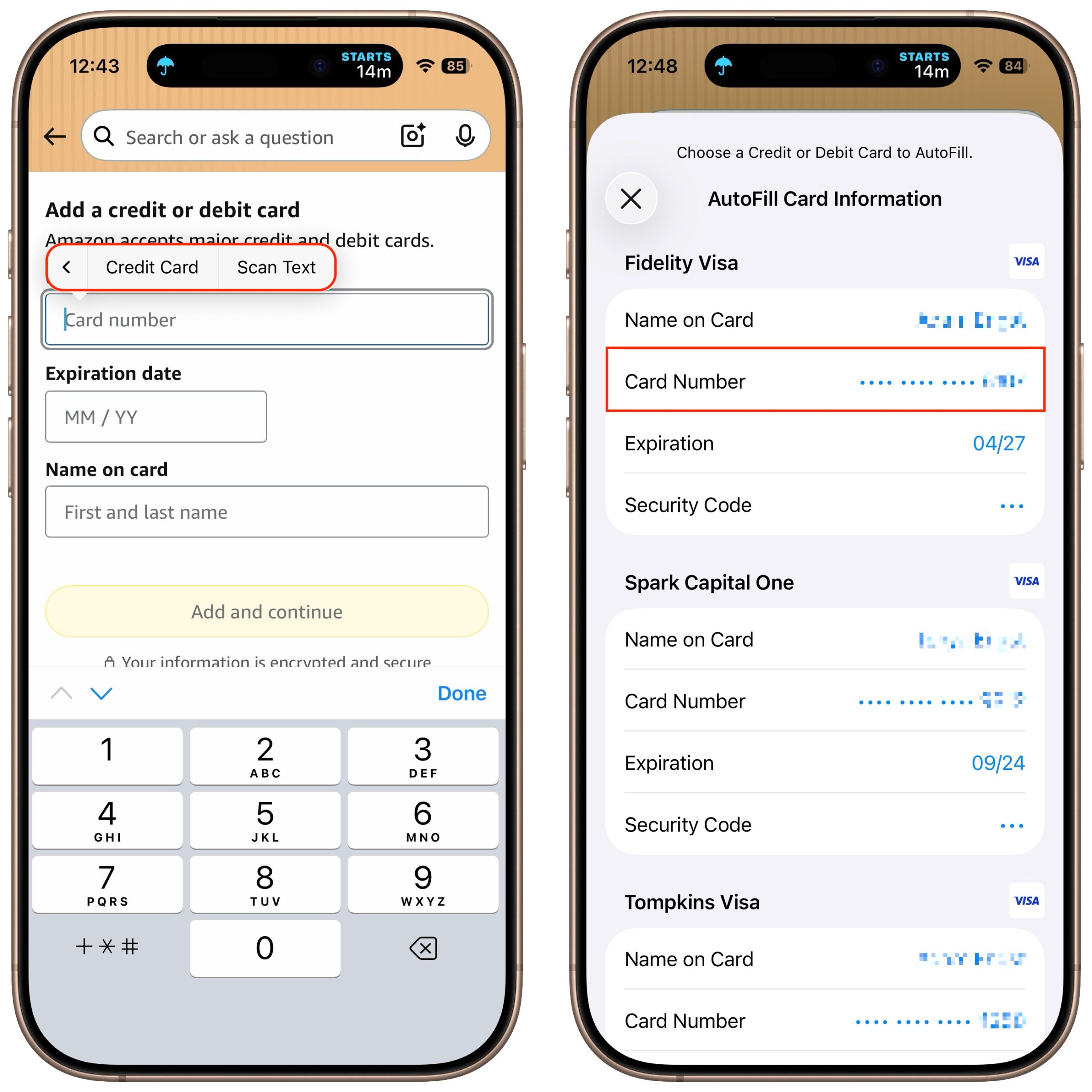
Sadly, not all websites and apps support Apple Pay, so we’ve become accustomed to manually entering our credit card information into fields, like animals. No longer! In iOS 26, the Wallet app now supports AutoFill. If you need to add a card—those set up with Apple Pay are already available—open Wallet, tap the three-dot menu in the top-right corner, tap AutoFill, then tap Add Card. You can scan the card with your camera or enter details manually. Then, whenever you’re checking out on a website or in an app that doesn’t support Apple Pay, tap a payment field. You may be able to select a saved card from the suggestions above the keyboard, or you may have to tap in the field to bring up the text menu, and tap AutoFill > Credit Card (below left). When you invoke AutoFill from above the keyboard, your card number, expiration date, and security code will be automatically entered. Using the menu requires tapping the blue text for the field you want to fill (below right).
(Featured image by iStock.com/BongkarnThanyakij)

A week might be too short if IT approval is still pending. I'd treat "keeping your old iPhone for a…
Awesome tech breakdown on "When Should You Upgrade to macOS 27 Golden Gate, iOS 27, iPadOS 27, watchOS 27, tvOS…
I’ve used Chrome’s built-in screenshot tool, but opening DevTools every time gets a bit tedious. I recommend FullPage Capture, it’s…
This is such an important reminder. I've been in meetings where an AI notetaker silently joined and recorded everything, and…
Awesome tech breakdown on "When Should You Upgrade to macOS 27 Golden Gate, iOS 27, iPadOS 27, watchOS 27, tvOS…