
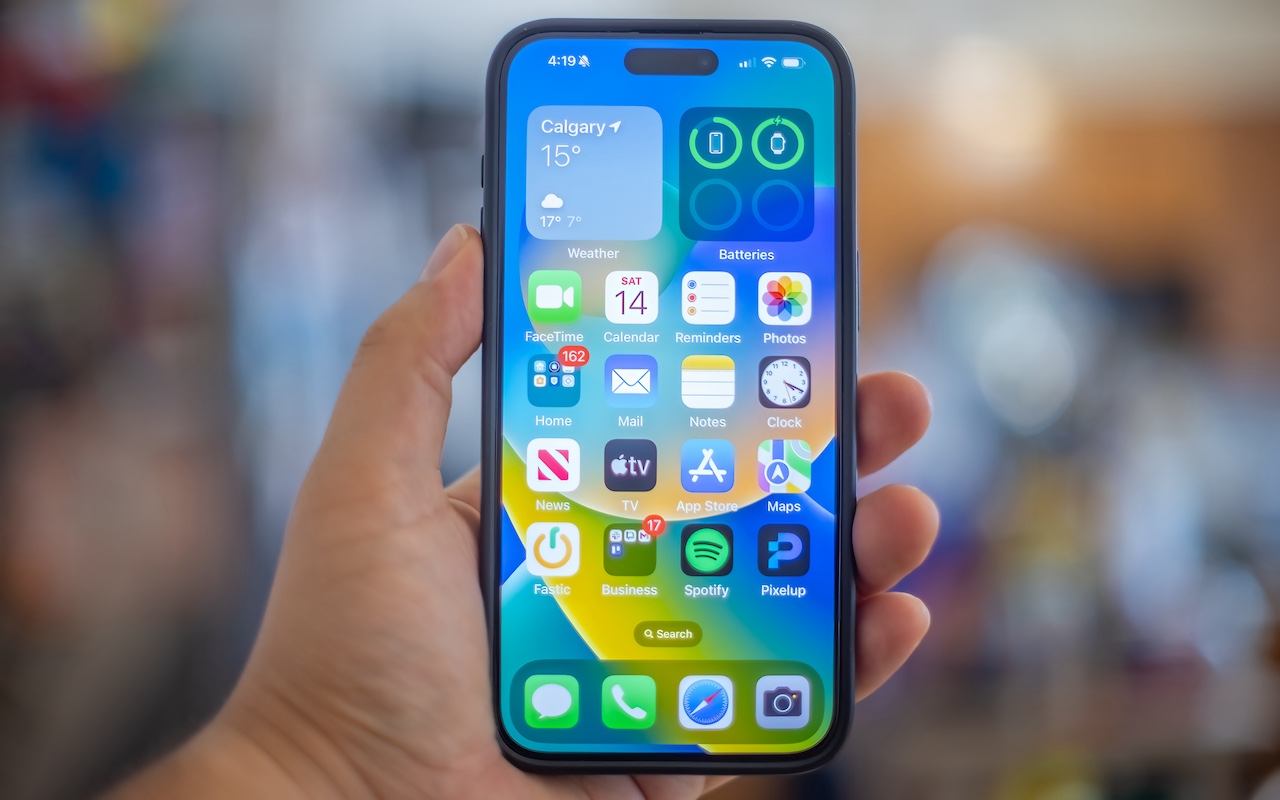
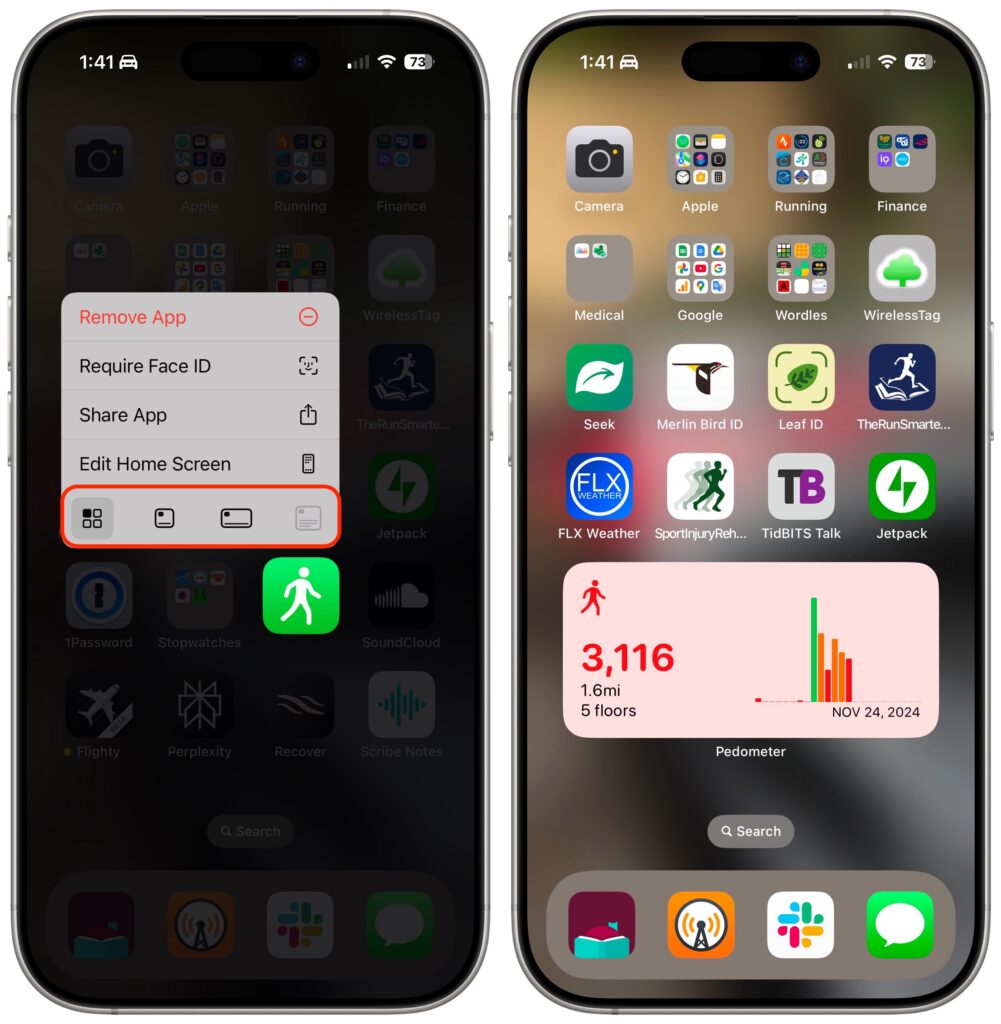
Widgets on the iPhone or iPad Home Screen are enhanced versions of app icons that display extra information. You can now bypass the complicated widget creation process and experiment with widgets more easily. No longer do you have to edit the Home Screen, tap the Edit button, tap Add Widget, choose a widget from the full set of choices, and position it as desired. Instead, touch and hold an app’s icon and tap the desired widget size from the bottom of the menu. The first icon represents a standard icon; the remaining three display the app as a 2×2 widget, a 4×2 widget, or a 4×4 widget. The menu appears only for apps with widgets, and unavailable options indicate that the app lacks a widget of that size. Repeat the process to change a widget’s size or revert a widget to an icon.
(Featured image by iStock.com/Marvin Samuel Tolentino Pineda)

Picking one style guide and living with it is the advice I give every time this question comes up, and…
Golden Gate as the macOS 27 codename is a nice callback. For mixed households I'd love a recommendation on the…
Check with your phone service provider.
Do you take orders for the new 18 or is that just at the Apple stores? Thanks
Making Wi-Fi joining as easy as scanning a QR code is exactly the kind of MacWorks tip guests actually use.