

Somehow, you’ve ended up with two folders whose contents—hundreds of files or more—are similar but not identical. Perhaps you’re recovering from a sync failure, or maybe you pulled an old version of the folder from a backup and aren’t sure what’s different. Regardless, here’s how you can merge them in the Finder.
- Make sure the folders are named identically and are in two different locations on your Mac.
- Press and hold the Option key, then drag the folder that contains more files to the location that contains the folder with fewer files.
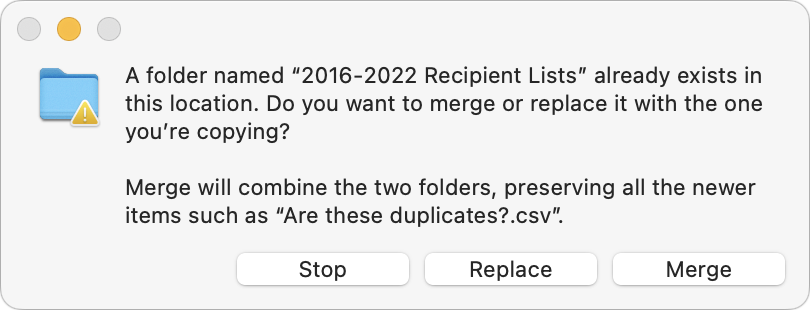
- In the dialog that appears, click Merge to copy only newer files from the source and those not already in the destination. (It’s not a two-way sync; for that, you need an app like ChronoSync.)
The Merge button appears only if the source folder contains files not in the destination; if the folders contain just different versions of identically named files, you’ll get only Stop and Replace buttons. For safety, always work on copies of your folders and check your work afterward to ensure the right things happened, and then delete the extras.
As always, if you run into trouble, we’re here to help.
(Featured image by iStock.com/RerF)

Picking one style guide and living with it is the advice I give every time this question comes up, and…
Golden Gate as the macOS 27 codename is a nice callback. For mixed households I'd love a recommendation on the…
Check with your phone service provider.
Do you take orders for the new 18 or is that just at the Apple stores? Thanks
Making Wi-Fi joining as easy as scanning a QR code is exactly the kind of MacWorks tip guests actually use.