
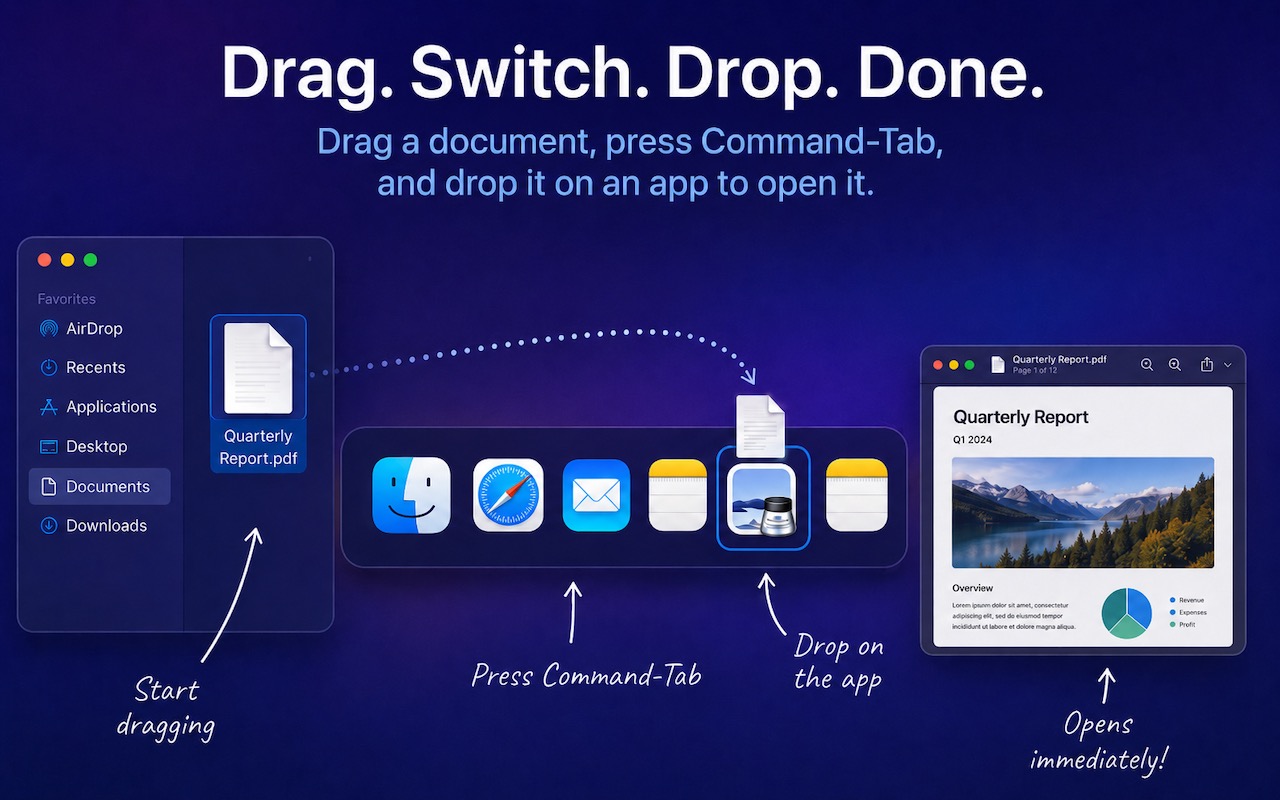
You undoubtedly know about pressing Command-Tab to bring up the macOS App Switcher and mousing to the app you want to switch to. Austin keyboard jockeys probably even know to keep holding Command down while pressing Tab or right-arrow to cycle to the right (press Shift-Tab, the grave accent/tilde key, or left-arrow to cycle to the left), before releasing the Command key to switch. But did you know you can start dragging something—say a document listing your favorite tacos in Austin— from the Finder, using your right hand, press Command-Tab with your left hand, and then drop the document on an app in the App Switcher to open it? Go ahead, give it a try!

(Featured image generated by Adam Engst with ChatGPT)

A week might be too short if IT approval is still pending. I'd treat "keeping your old iPhone for a…
Awesome tech breakdown on "When Should You Upgrade to macOS 27 Golden Gate, iOS 27, iPadOS 27, watchOS 27, tvOS…
I’ve used Chrome’s built-in screenshot tool, but opening DevTools every time gets a bit tedious. I recommend FullPage Capture, it’s…
This is such an important reminder. I've been in meetings where an AI notetaker silently joined and recorded everything, and…
Awesome tech breakdown on "When Should You Upgrade to macOS 27 Golden Gate, iOS 27, iPadOS 27, watchOS 27, tvOS…