
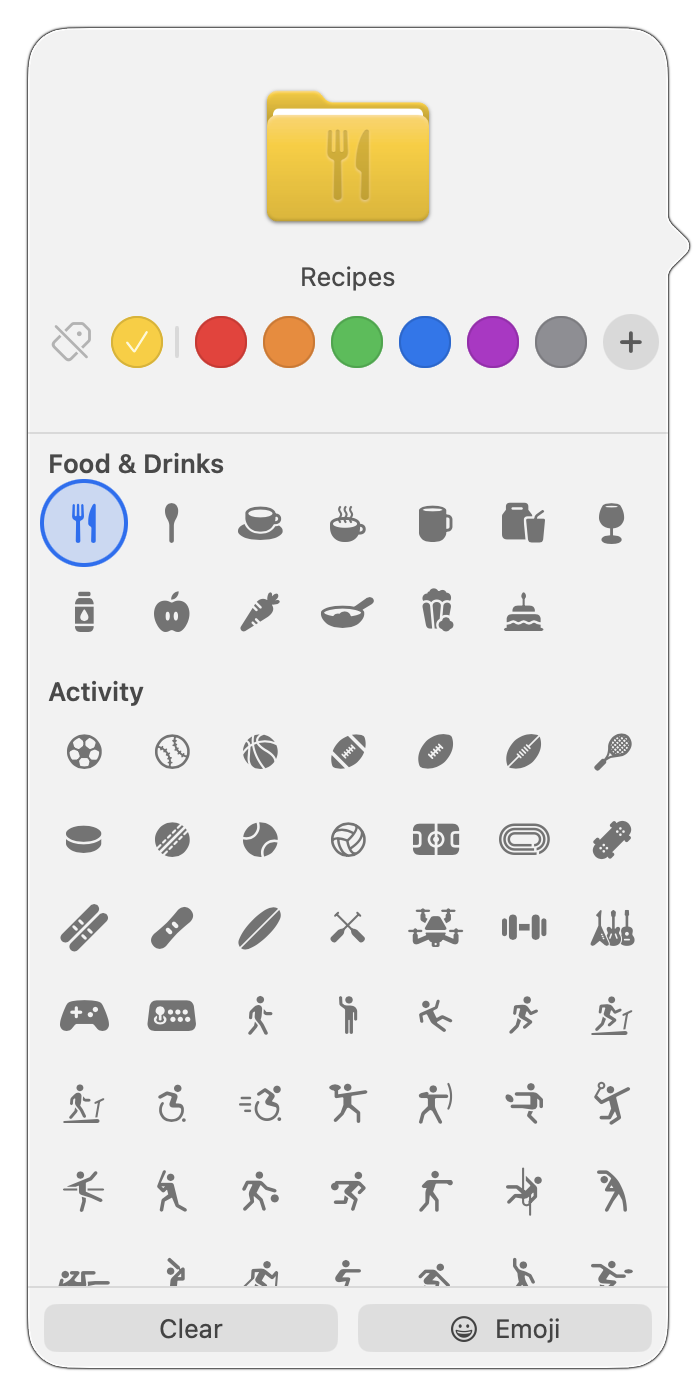
In macOS 26 Tahoe, Apple has made it easier to customize folder appearance in the Finder. Control-click any folder and choose Customize Folder. In the panel that appears, click a colored circle to apply that color and then select an icon to display on the folder. Click the Emoji button to choose from the full set of emoji instead of the icons. A few notes: Customization is available for everything except macOS’s Applications, Library, System, and Users folders. These colors are associated with Finder tags, which you can change in Finder > Settings > Tags. Although the colors and icons should sync via iCloud Drive, don’t assume they’ll survive other cloud-based syncing services or other actions (like archiving) that may not preserve Finder metadata. In other words, they’re mostly useful for individuals, not workgroups.
(Featured image by iStock.com/Christian Ouellet)

No macos Tahoe did not make it easier to customize folder icons. It completely removed the several hunder folder icons I had the second I updated to Tahoe. And I have spent hours using every available app, Terminal directive to apply custom icons (images) like I had before and absolutely nothing works! Tahoe destroyed my filing system which was visual and was detrimental that it was visual icons. It wasn’t just for fun, it was part of the structure of my filing-folder system that I have used for years.
No macos Tahoe did not make it easier to customize folder icons. It completely removed the several hundred folder icons I had the second I updated to Tahoe. And I have spent hours using every available app, Terminal directive to apply custom icons (images) like I had before and absolutely nothing works! Tahoe destroyed my filing system which was visual and was detrimental that it was visual icons. It wasn’t just for fun, it was part of the structure of my filing-folder system that I have used for years.