
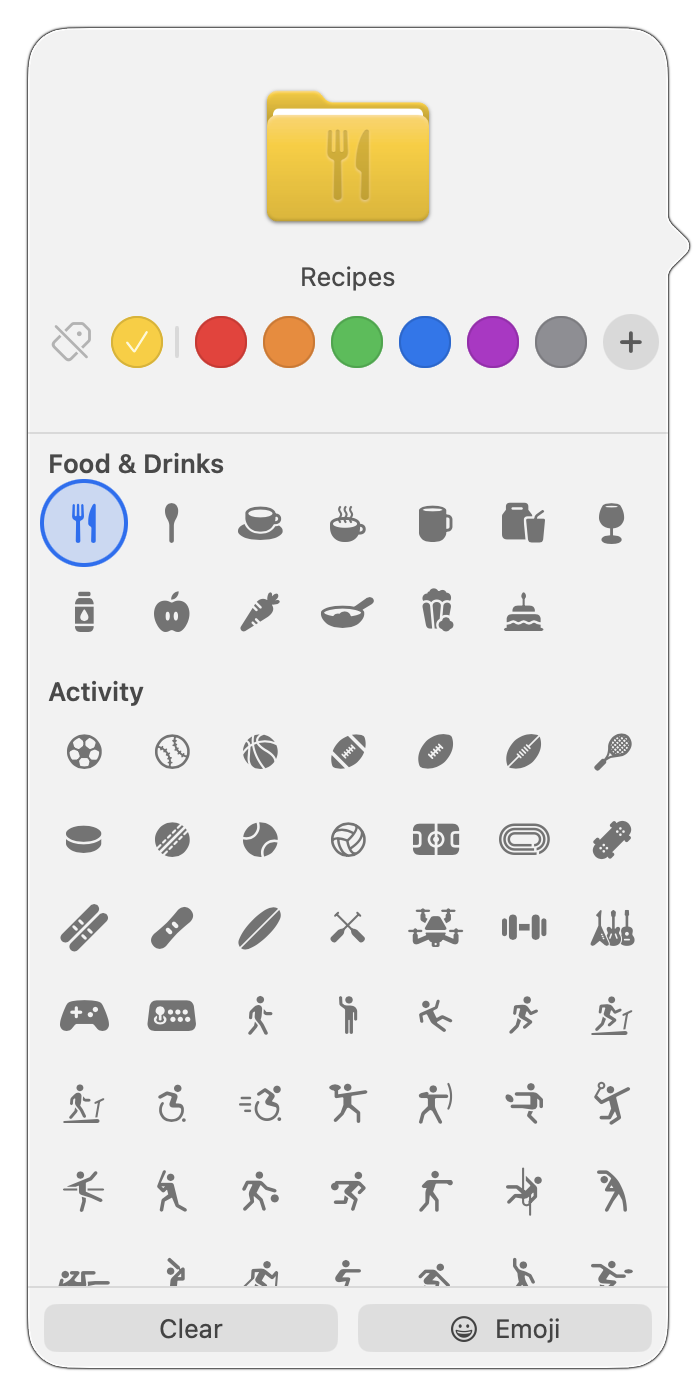
In macOS 26 Tahoe, Apple has made it easier to customize folder appearance in the Finder. Control-click any folder and choose Customize Folder. In the panel that appears, click a colored circle to apply that color and then select an icon to display on the folder. Click the Emoji button to choose from the full set of emoji instead of the icons. A few notes: Customization is available for everything except macOS’s Applications, Library, System, and Users folders. These colors are associated with Finder tags, which you can change in Finder > Settings > Tags. Although the colors and icons should sync via iCloud Drive, don’t assume they’ll survive other cloud-based syncing services or other actions (like archiving) that may not preserve Finder metadata. In other words, they’re mostly useful for individuals, not workgroups.
(Featured image by iStock.com/Christian Ouellet)

Super insightful and fresh perspective.
Well explained and easy to follow.
So glad I stumbled upon this.
Looking forward to your next post!
Truly a masterpiece of content.