

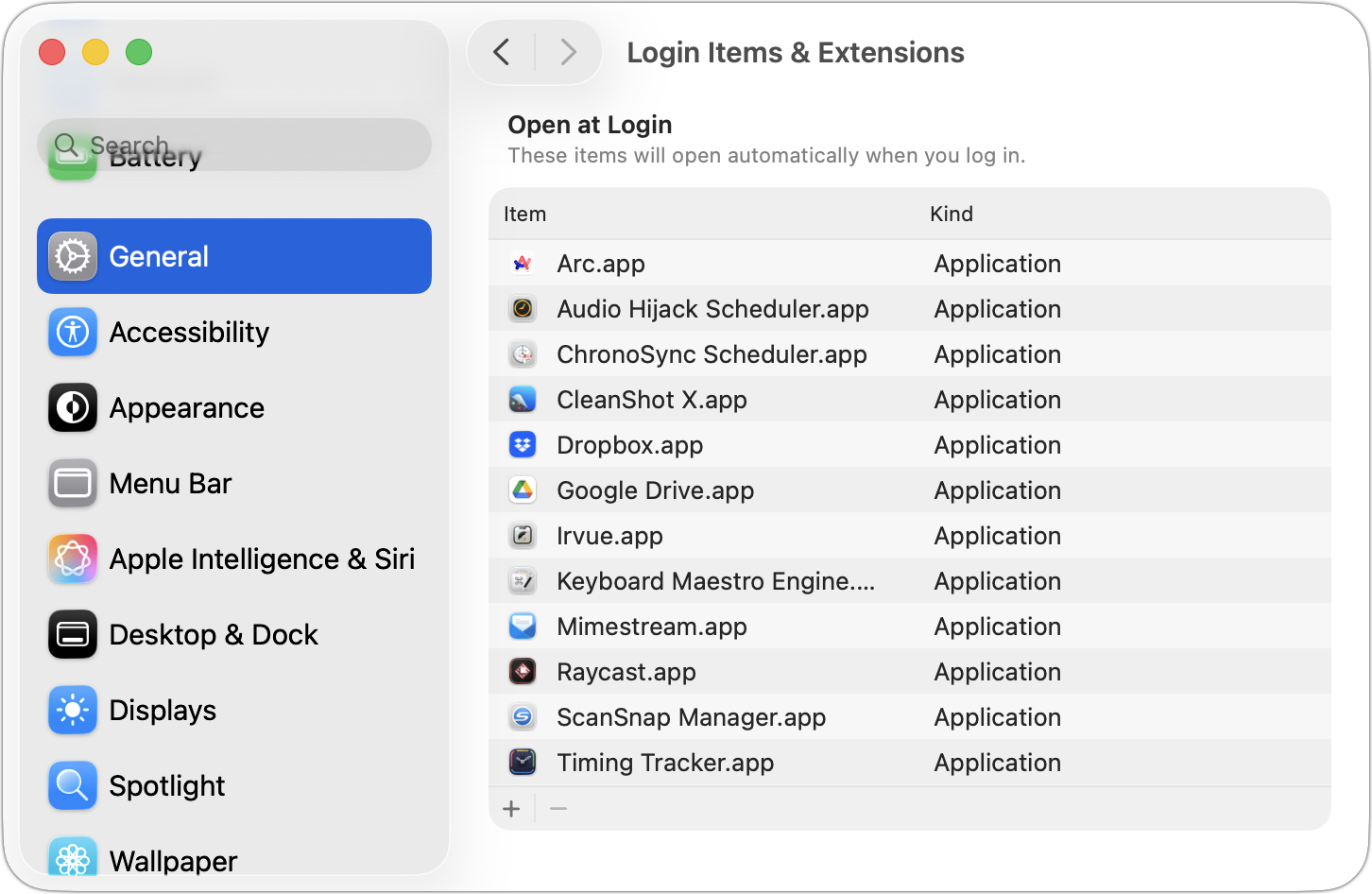
If you use certain apps or documents regularly, you can ensure they’re ready to go after a restart by manually adding them to your Login Items list. Some login items are also added automatically by apps that want to be available at all times. Either way, when the Mac boots, it automatically opens all login items. But it’s easy to end up with login items for apps you no longer use, which can slow down startup and overall performance, increase the risk of conflicts, and even expose you to attacks. We encourage you to review your Mac’s login items periodically and remove any items you’re not using. Just navigate to System Settings > General > Login Items & Extensions, select the unwanted items, and click the minus button. If you make a mistake, drag the app back in from the Finder.
(Featured image by iStock.com/artisteer)

A week might be too short if IT approval is still pending. I'd treat "keeping your old iPhone for a…
Awesome tech breakdown on "When Should You Upgrade to macOS 27 Golden Gate, iOS 27, iPadOS 27, watchOS 27, tvOS…
I’ve used Chrome’s built-in screenshot tool, but opening DevTools every time gets a bit tedious. I recommend FullPage Capture, it’s…
This is such an important reminder. I've been in meetings where an AI notetaker silently joined and recorded everything, and…
Awesome tech breakdown on "When Should You Upgrade to macOS 27 Golden Gate, iOS 27, iPadOS 27, watchOS 27, tvOS…