
A standard piece of advice for staying safe online is to avoid opening attachments from people you don’t know or attachments that seem suspicious. It’s good advice, since PDFs and office documents can contain JavaScript and macros that present a security risk, or they could be maliciously crafted to take advantage of vulnerabilities in common apps to execute code on your computer.
But in the real world, unless the document is attached to a message that is obviously spam, it’s difficult to know whether you should be worried. If you could just look at the document, you might be able to tell, but how can you do that without opening it?
Enter Dangerzone, an open source app created by the nonprofit Freedom of the Press Foundation. The impetus for creating it came from journalists who need to review attachments from possibly untrustworthy sources while protecting themselves from hacking and retaliation from powerful corporate and government interests.
Dangerzone won’t tell you whether or not a document is safe. Instead, when you drop a document on its window, it creates a PDF image of the document that contains nothing of the original other than the visual representation of its pixels. Think of Dangerzone as a virtual photocopier—it makes a visual copy.
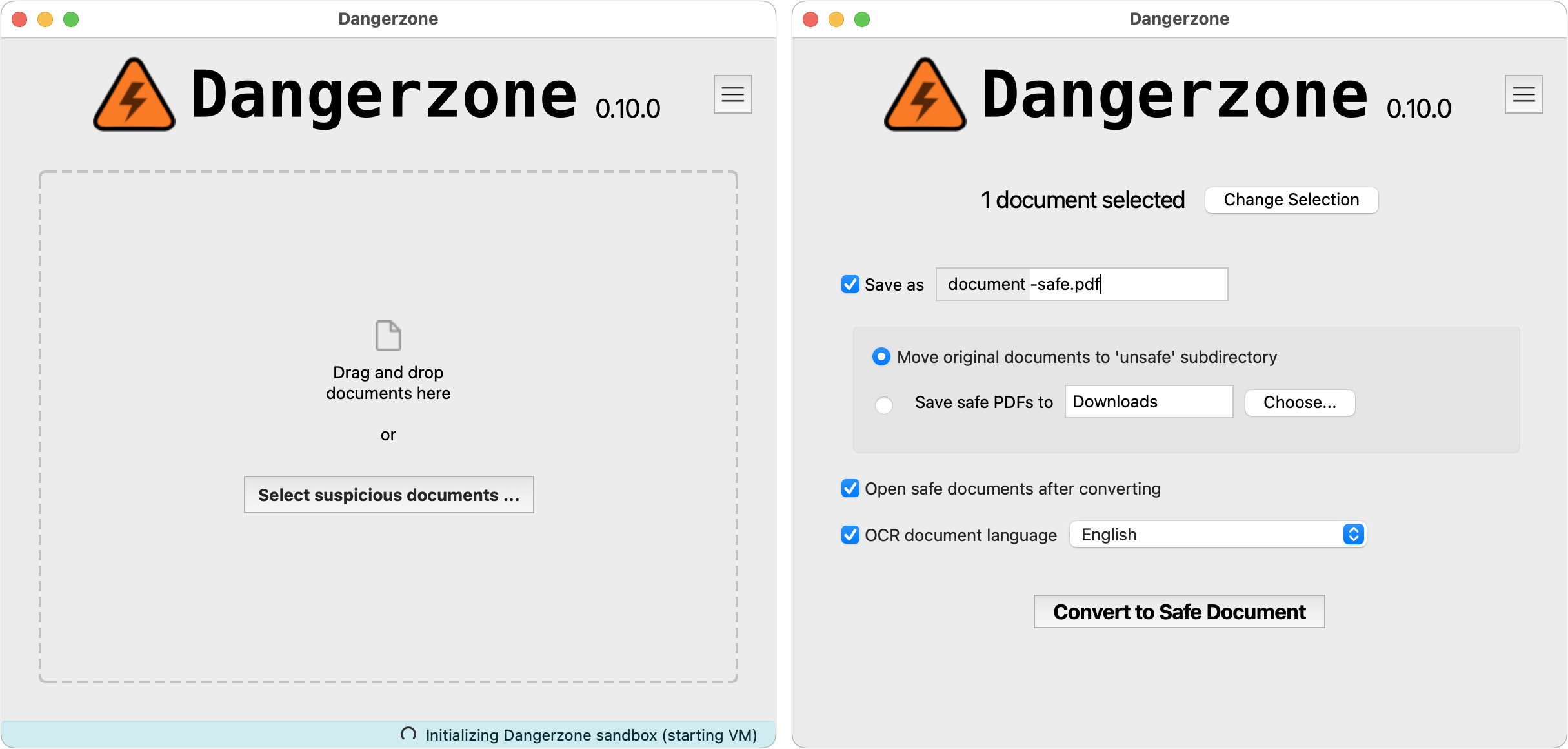
But Dangerzone is a highly sophisticated virtual photocopier, since it has to work with malicious documents without allowing them to cause harm. Behind the scenes, Dangerzone first creates a Linux container to keep the document away from your Mac. Within the container, it then creates a sandbox to protect the Linux kernel. Then it uses open source tools—LibreOffice and PyMuPDF—to convert the original document to a PDF, split that PDF into individual pages, and convert each page to RGB pixels—just colored dots. Then it quits the sandbox since the file has been sanitized, and if possible, it converts the RGB pixel data into a compressed, searchable PDF. Finally, it saves the PDF to the specified folder and archives the original file. You can process only one file or batch of files at a time to ensure that the entire secure conversion environment starts fresh each time.
Here are the document types that Dangerzone can convert into safe PDFs:
- PDF (.pdf)
- Microsoft Word (.docx, .doc)
- Microsoft Excel (.xlsx, .xls)
- Microsoft PowerPoint (.pptx, .ppt)
- ODF Text (.odt)
- ODF Spreadsheet (.ods)
- ODF Presentation (.odp)
- ODF Graphics (.odg)
- EPUB (.epub)
- JPEG (.jpg, .jpeg)
- GIF (.gif)
- PNG (.png)
- SVG (.svg)
- TIFF (.tif, .tiff)
- Other image formats (.bmp, .pnm, .pbm, .ppm)
You won’t want to use Dangerzone on every document you receive in email. There’s no reason to fuss with it for attachments that come from people you know, in contexts where it makes sense that they’re sending you something. But if you get an attachment out of the blue that makes you think, “Why is this person sending me a document?” run the document through Dangerzone to make sure it’s safe.
(Featured image by iStock.com/shironosov)

Super insightful and fresh perspective.
Well explained and easy to follow.
So glad I stumbled upon this.
Looking forward to your next post!
Truly a masterpiece of content.